
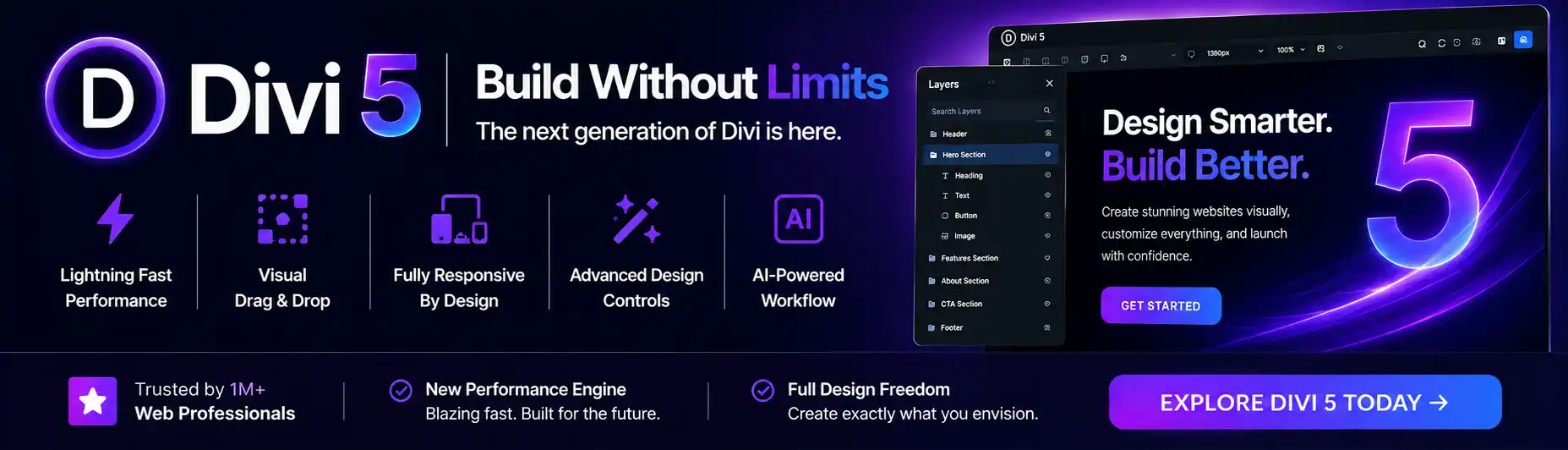
Are you ready to unleash your creativity and take your website design skills to the next level? Look no further than Divi, the ultimate WordPress theme that offers a multitude of options for building your dream website. In this article, we will explore the essential building blocks of Divi known as basic modules. From text modules to image galleries, we will break down each module, giving you a comprehensive understanding of its features and how to best utilize them. Get ready to dive in and unlock the full potential of Divi!

Building Blocks of Divi: Unpacking the Essentials of Basic Modules
Introduction
Welcome to the world of Divi! If you’re new to this powerful WordPress theme and visual builder, you’re in for a treat. Divi offers a wide range of features and options that can help you create stunning websites without any coding knowledge. In this article, we’ll delve into the essentials of Divi’s basic modules, which are the building blocks you’ll need to create your website. So let’s start unlocking the full potential of Divi!
Heading 1: The Text Module
Subheading 1.1: Introduction to the Text Module
One of the most fundamental modules in Divi is the Text module. As the name suggests, it allows you to add and format text content on your website. You can use it for anything from creating headings and paragraphs to adding bullet points and quotes. With the Text module, you have complete control over the font style, size, color, alignment, and more.
Subheading 1.2: Advanced Features of the Text Module
The Text module provides advanced features that allow you to take your text content to the next level. For instance, you can add animations to your text, making it fade in or slide in as users scroll down the page. You can also add background colors or images to make your text stand out. Additionally, the Text module supports custom CSS and inline editing, giving you even more flexibility in designing your website.
Subheading 1.3: Best Practices for Using the Text Module
When using the Text module, it’s essential to keep a few best practices in mind. Firstly, make sure to use headings appropriately to structure your content and improve readability. Secondly, consider the typography and choose fonts that complement your overall design. Finally, don’t forget to utilize the module’s responsive settings to ensure your text looks great on different devices.

Heading 2: The Image Module
Subheading 2.1: Introduction to the Image Module
The Image module is another crucial building block in Divi. It enables you to add images to your website effortlessly. Whether you want to showcase product photos, display your portfolio, or add visual elements to your blog posts, the Image module has got you covered. You can easily upload images from your computer or choose from Divi’s extensive library of free images.
Subheading 2.2: Advanced Features of the Image Module
With the Image module, you can go beyond basic image display. Divi offers various advanced features to enhance your images. For example, you can apply different filters and effects, such as sepia or grayscale, to create a unique visual style. You can also add captions or overlay text on your images for additional context. Furthermore, the module supports image cropping and resizing, ensuring your images are optimized for different screen sizes.
Subheading 2.3: Best Practices for Using the Image Module
To make the most of the Image module, it’s essential to optimize your images for web use. Large image files can slow down your website’s loading speed, so it’s recommended to compress and resize them before uploading. Additionally, consider using descriptive alt text for your images to improve accessibility and search engine optimization.
Heading 3: The Button Module
Subheading 3.1: Introduction to the Button Module
Buttons play a vital role in guiding users to take action on your website, whether it’s signing up for a newsletter, purchasing a product, or exploring more content. The Button module in Divi allows you to create stylish and attention-grabbing buttons without any hassle. You can customize the button’s text, color, size, shape, and animation to match your website’s design and branding.
Subheading 3.2: Advanced Features of the Button Module
The Button module offers advanced features that can significantly boost your website’s functionality. You can choose from various button styles, including transparent, gradient, and 3D effects, to create a unique look. Moreover, the module supports adding icons to your buttons, making them more visually appealing and informative. You can also add hover effects and transitions to make your buttons more interactive.
Subheading 3.3: Best Practices for Using the Button Module
When using the Button module, it’s crucial to consider its placement and design. Buttons should be strategically placed where users are more likely to see and engage with them. Additionally, ensure that the button text clearly communicates the desired action and creates a sense of urgency if applicable. Finally, make sure your buttons are responsive and accessible, providing a seamless user experience across different devices.

Heading 4: The Divider Module
Subheading 4.1: Introduction to the Divider Module
Dividers are useful elements that can help separate different sections of your website, add visual interest, and improve the overall flow of your content. The Divider module in Divi allows you to create horizontal lines, shapes, and patterns that can break up the page and make it more engaging. You can customize the color, thickness, style, and spacing of your dividers to match your website’s design.
Subheading 4.2: Advanced Features of the Divider Module
The Divider module offers advanced features that can take your dividers to the next level. You can add animations to your dividers, making them fade or slide in as users scroll down the page. Moreover, the module supports adding background images or gradients to your dividers, adding visual interest and enhancing your website’s overall aesthetic.
Subheading 4.3: Best Practices for Using the Divider Module
When using the Divider module, it’s important to strike a balance between using dividers effectively and not overwhelming your website with too many of them. Dividers should be used strategically to separate content logically and improve the user’s reading experience. Experiment with different divider styles and consider how they complement your overall design while remaining unobtrusive.
Conclusion
Congratulations, you’ve now explored the essential building blocks of Divi’s basic modules! With the Text, Image, Button, and Divider modules under your belt, you have the tools to create visually stunning and functional websites. Remember to experiment, have fun, and let your creativity shine through as you uncover the endless possibilities of Divi. Happy building!
